
Viewing SSL Certificate Details in Chrome
Online security and SSL certificates have become even more important, especially since Google made HTTPS mandatory starting in July 2018. While advanced users can easily check certificate details in their browser, regular users may find this challenging.
1. What Information is Available in an SSL Certificate?
SSL certificates contain a lot of technical information, but as a regular user, the key things to look at are:
- Certificate Authority (CA): the trusted authority that issued the SSL certificate.
- Validity Period: you can check when the certificate expires to see if it's still valid.
- Issued To: shows which domain or public IP address the certificate is associated with.
- Organization Information: for OV (Organization Validated) or EV (Extended Validated) certificates, the name of the verified organization is shown.
- SAN Entries: the alternative domain names the certificate covers (for multi-domain or wildcard certificates).
2. Viewing SSL Certificate Details in Chrome
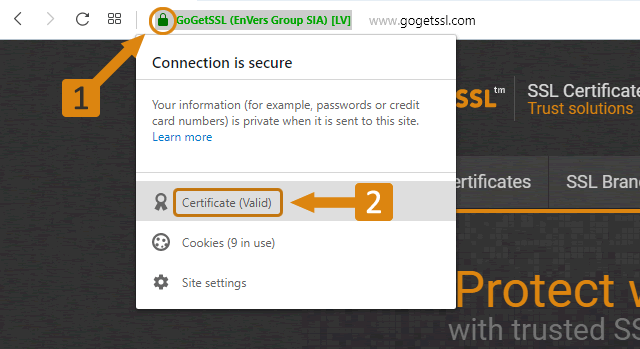
Viewing SSL certificate details in Chrome is quite simple. You can follow these steps:
Click the "Lock" Icon:
- In Chrome's address bar, you'll see a lock icon next to the URL if the site uses HTTPS.
View Certificate Details:
- Clicking the lock icon opens a small window. In this window, click "Certificate" to view the details of the installed SSL certificate.
By following these steps, you can find the issuing authority, validity period and other important information about the certificate.

3. Viewing SSL Certificate Details in Firefox
- Click the "Info" icon in the address bar;
- Click the "right arrow" in the "Connection" section to see all the details;

4. Viewing Certificate Details in the Opera Browser
- Click the "Lock" icon in the address bar;
- Click "View Certificate" to see the certificate's details;
6. Viewing Certificate Details in the Safari Browser
- Click the "Lock" icon in the address bar;
- Click "Show Certificate" to see all the details;

4. Viewing Certificate Details in the Edge Browser
- Click the "Lock" icon in the address bar;
- Click "View certificate" to see the installed certificate;

Can't find the answer you need?
Contact Us